talat for iPhone and Apple Watch
Record on your iPhone or Apple Watch. Each recording is end-to-end encrypted before it leaves your phone, then talat on your Mac or Windows PC transcribes it, recognises people from earlier meetings and writes up your notes. The phone app only records; the transcript comes from talat on your computer.
 Free. Needs talat 1.13 or later and a talat licence.
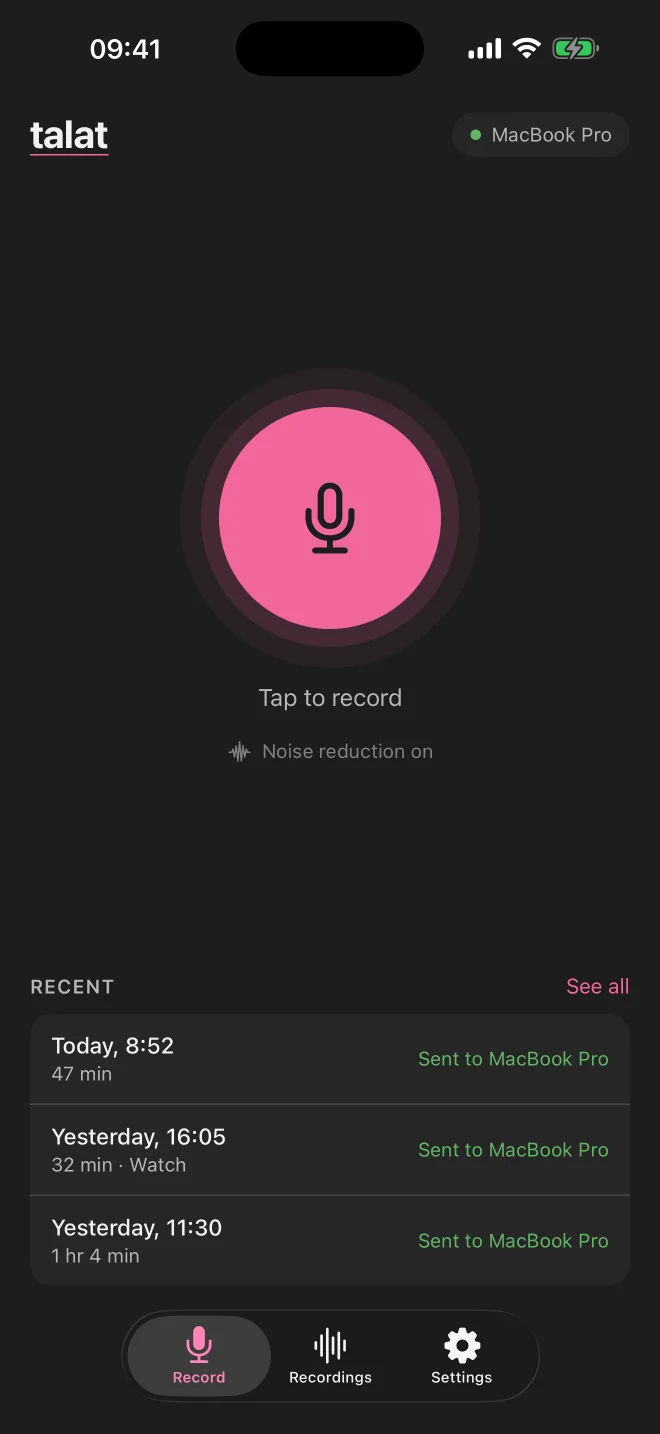
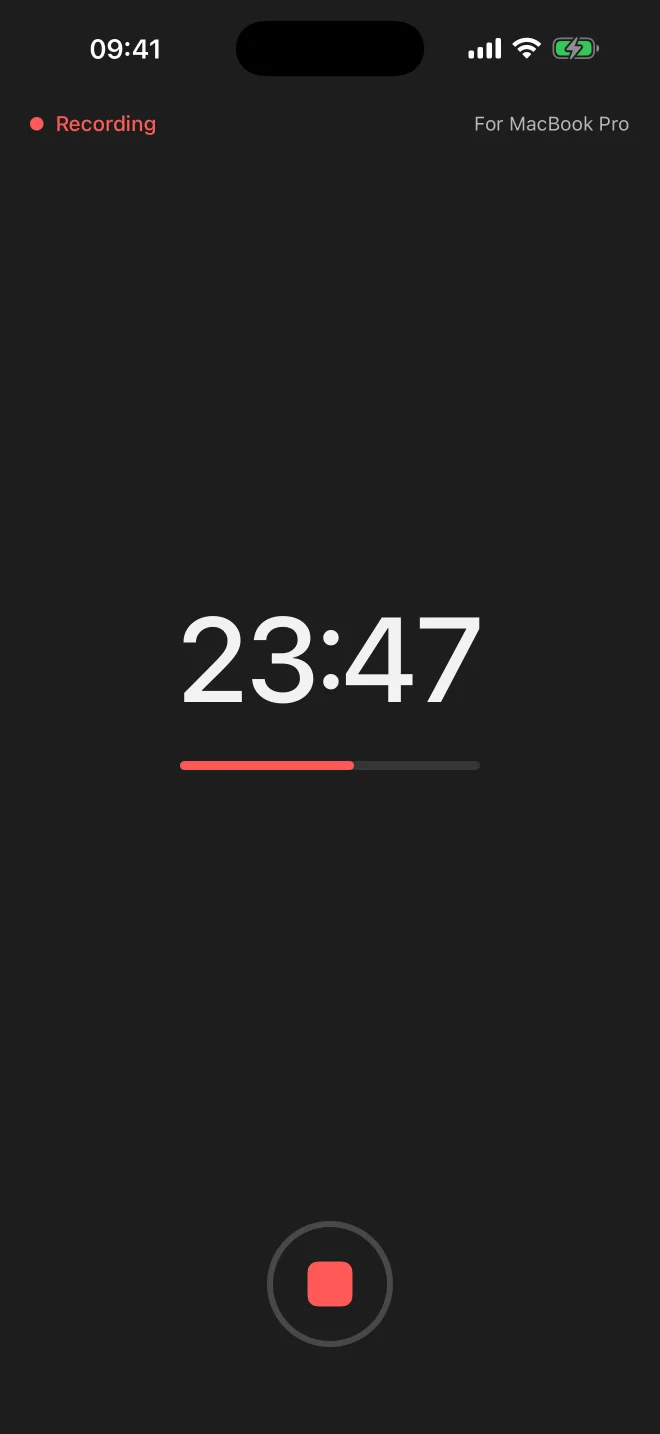
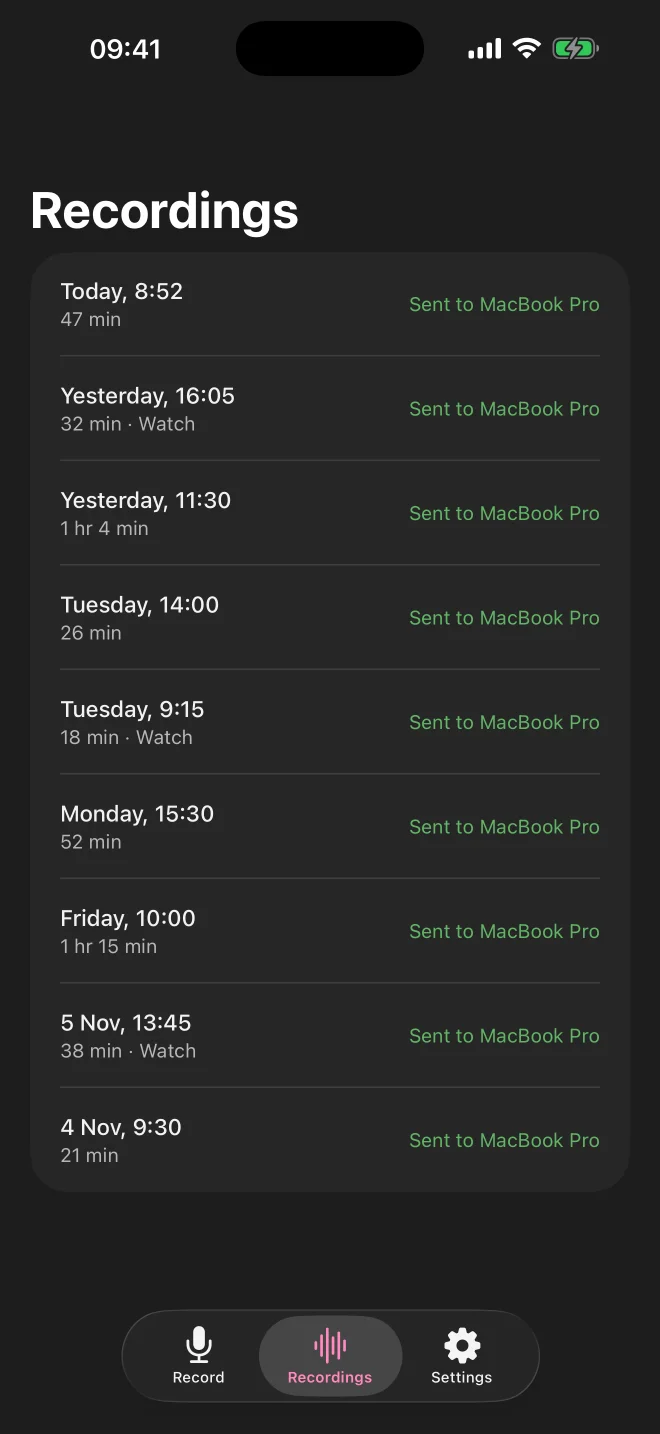
Tap to record.
Lock your phone and put it away while you record. The Lock Screen shows how long you’ve been recording, with a button to stop.
Background noise reduction is on by default. Turn it off if voices across the room come out too quiet.
You can record before you’ve paired. Recordings wait on your phone and are sent once you pair with a computer.
One button.
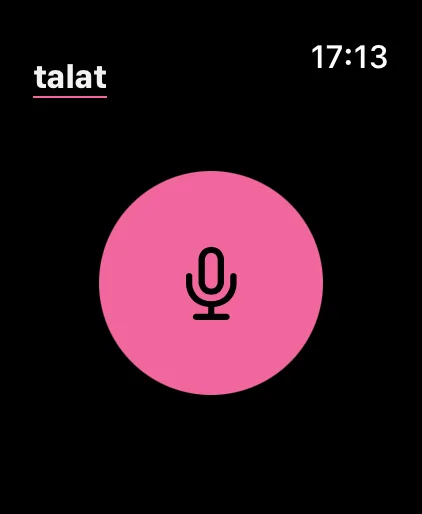
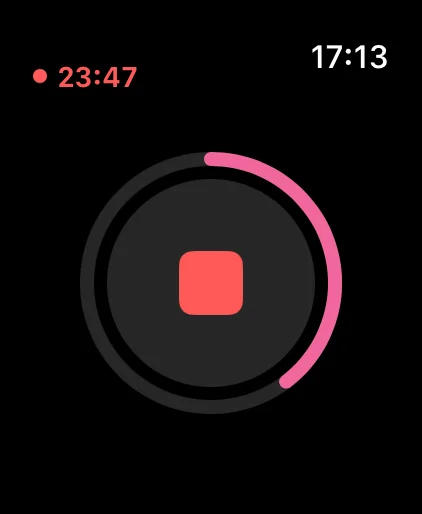
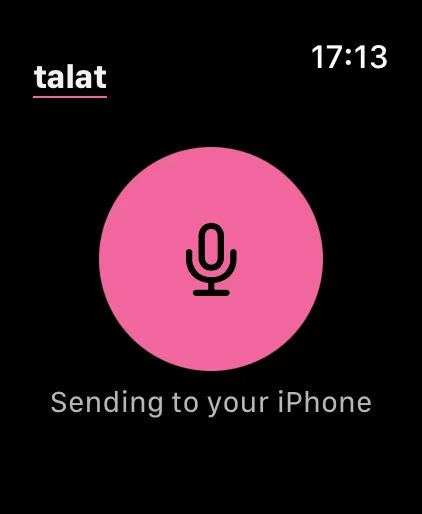
On Apple Watch, recording is one button. The Watch passes each recording to your iPhone whenever the phone is in reach, and keeps the recording until then.
Pair with a QR code.
- In talat on your computer, open Settings → Sync and choose Enable sync.
- Choose Add a phone.
- On your phone, choose Pair with your computer and scan the code.
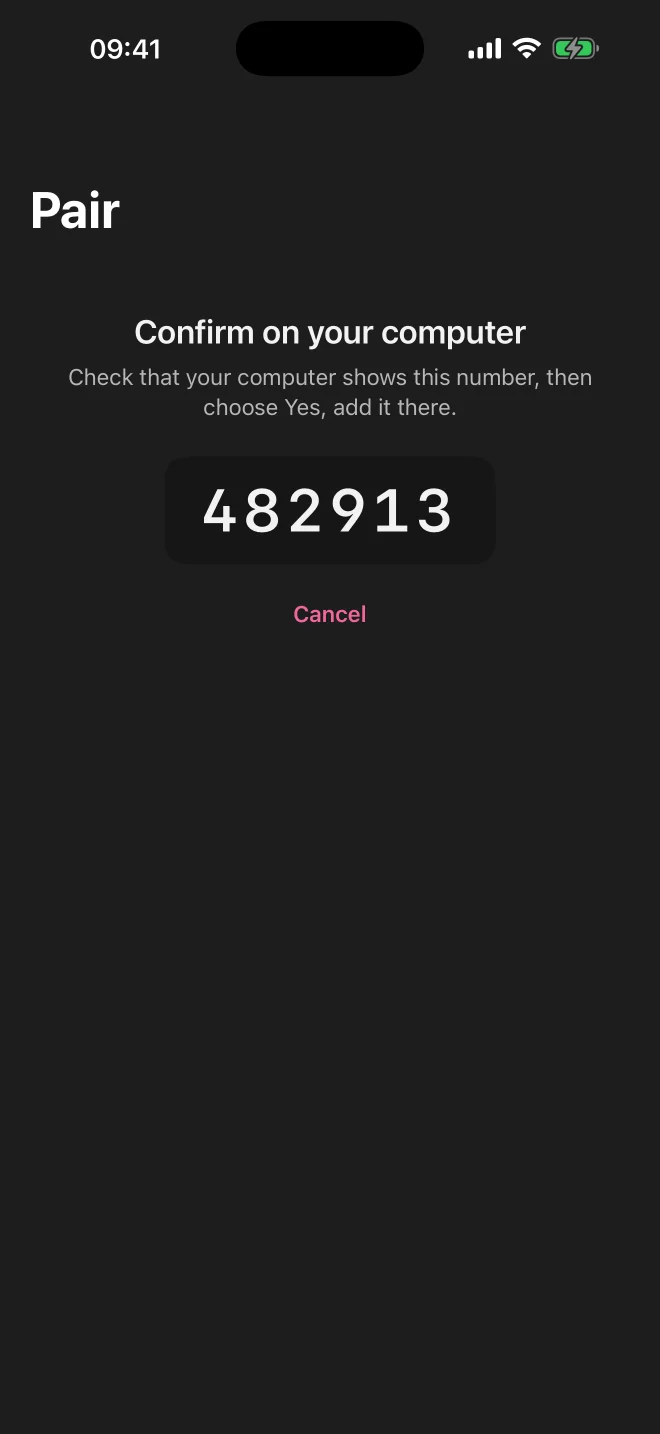
- Check the number matches on both screens.
The sync docs cover every step, and how to remove a phone.
Encrypted on your phone.
Recordings are end-to-end encrypted on your phone before they leave it, and your phone deletes its copy once your computer has the recording.
The app has no analytics or tracking, and there’s no account to sign up for.
What you need.
- talat 1.13 or later on a Mac with Apple Silicon (macOS 15 or later), or on Windows 10 or 11
- A talat licence. Sync isn’t available during the trial or in talat from Setapp.
- An iPhone with iOS 17 or later. The Watch app needs watchOS 10 or later.
The app is free.
Don’t have talat on your computer yet?
Recording people may need their consent where you live. Tell people before you record them.