How to transcribe an audio file on your own machine
Sometimes the recording already exists. A voice memo from your phone, an interview you saved as an MP3, a Zoom call someone exported and sent round, an old town hall sitting in a shared drive. You don't need to capture it again; you just need it as text you can read, search, and pull the decisions out of. The usual way to do that is to upload the file to a website and wait. talat does it on your own machine instead, and this guide walks through how.
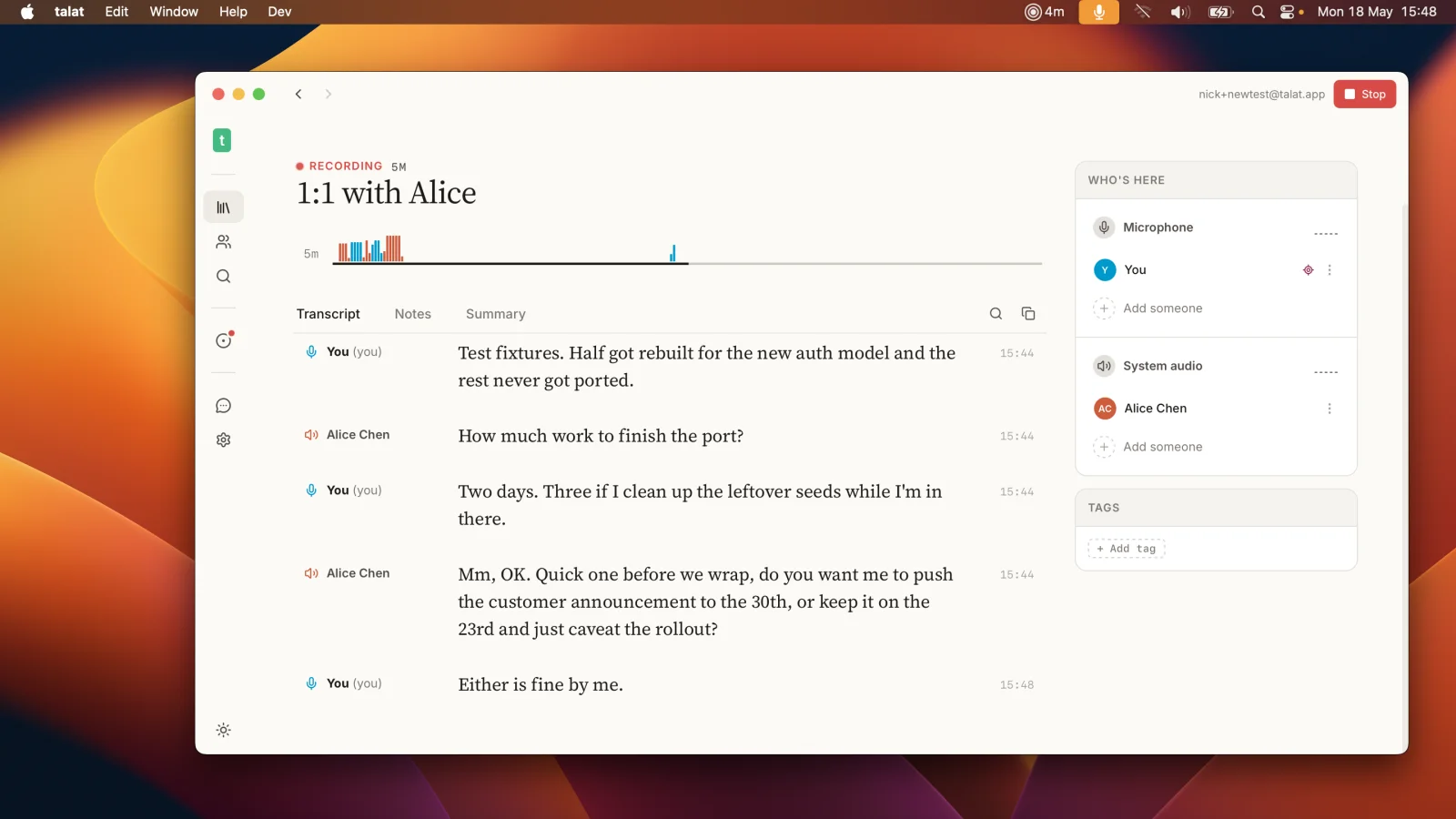
talat started life as a way to record meetings as they happen, with no bot joining the call and nothing uploaded. File import is the same idea pointed at a recording you already have. You hand it a file, it transcribes the whole thing locally, and what comes back is an ordinary talat meeting: a transcript that knows who said what, a summary, chapters, and a list of action items. Nothing about the file leaves your computer at any point.
Dropping in a file
There are three ways to start, and they all end up in the same place. You can drag an audio or video file straight onto the talat window. You can click the import button in the top bar, next to record. Or you can open the command palette with ⌘K and pick Import audio or video file. Whichever you use, talat opens a file picker if it needs one and gets to work.
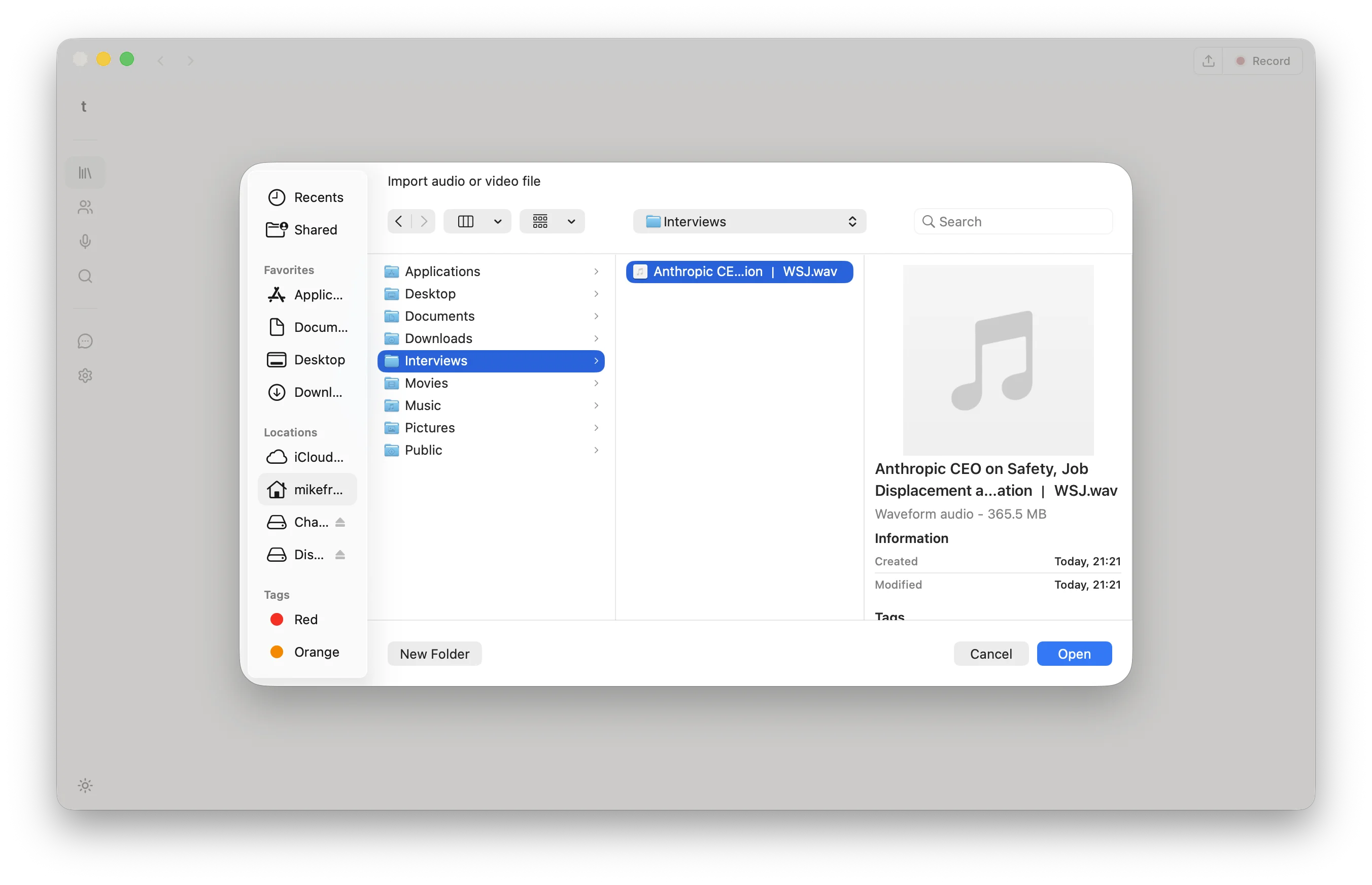
It reads the common audio formats directly: WAV, MP3, FLAC, AAC and M4A, and OGG Vorbis. It will also take a video file and transcribe just the audio track, so an MP4, MOV, or MKV screen recording works the same as a voice memo. If you feed it something it can't decode, it tells you so rather than failing quietly.
What you see while it runs
A file isn't instant. talat decodes the whole recording, scans it for speech, and transcribes each stretch, and for a long file that takes a little while, though comfortably faster than sitting through it in real time. While it works, a panel shows you where it's up to: a clock counting through the recording's length, a progress bar, and an estimate of how long is left once it has enough to judge by. The most recent line it has transcribed scrolls past underneath, so you can see it's finding real words and not just spinning.
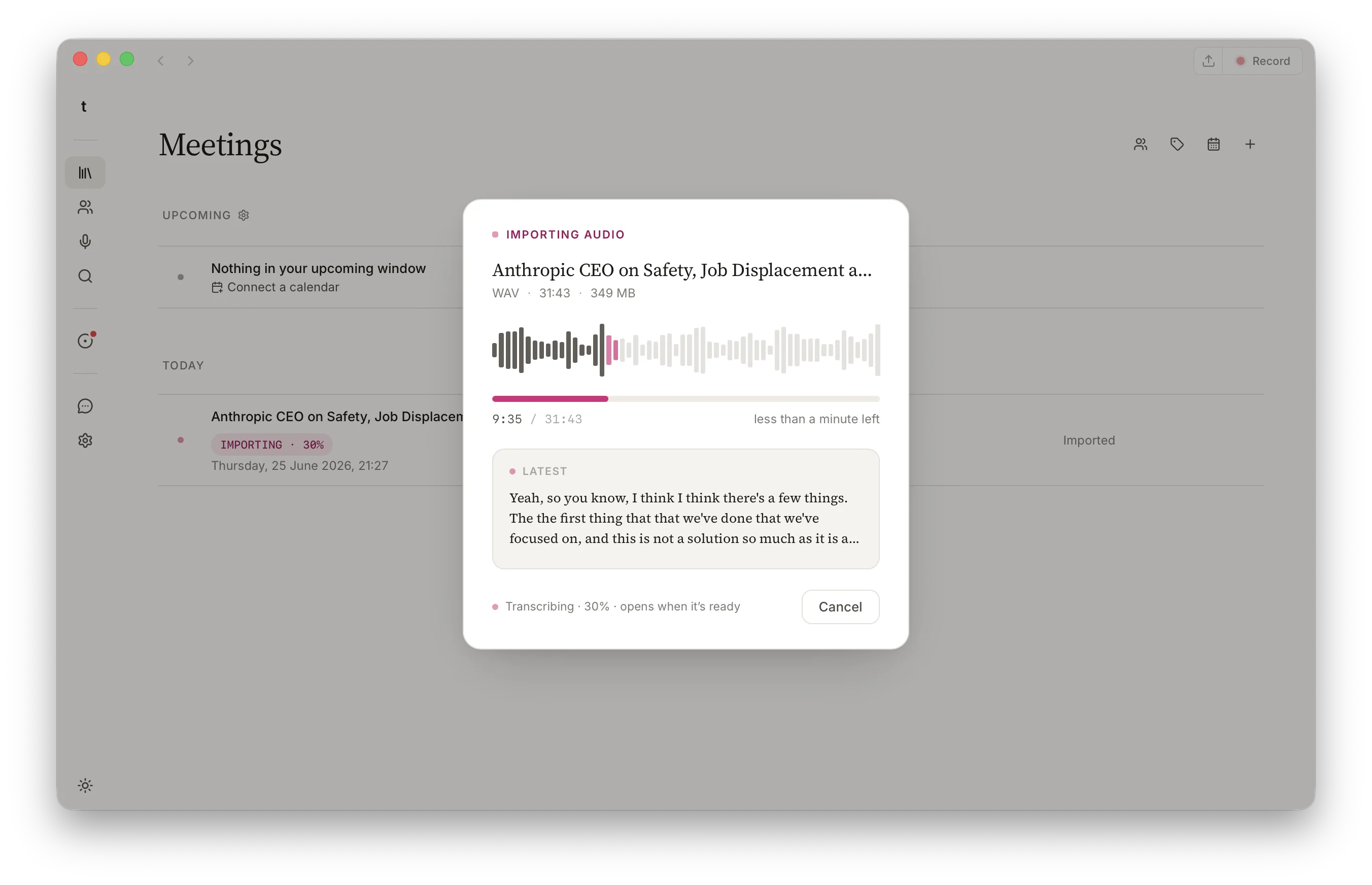
If you started the wrong file, or you've seen enough, there's a cancel button. Cancelling stops the import and discards the half-finished meeting, so you're never left with a stub to clean up. There's no pause and resume; an import either finishes or it doesn't.
What you get back
When it finishes, the result is indistinguishable from a meeting you recorded live. The transcript is broken into turns, each attributed to a speaker, and if the recording has more than one voice talat tells them apart and groups them separately. If you've named those people in talat before, it recognises them here too and labels them automatically.
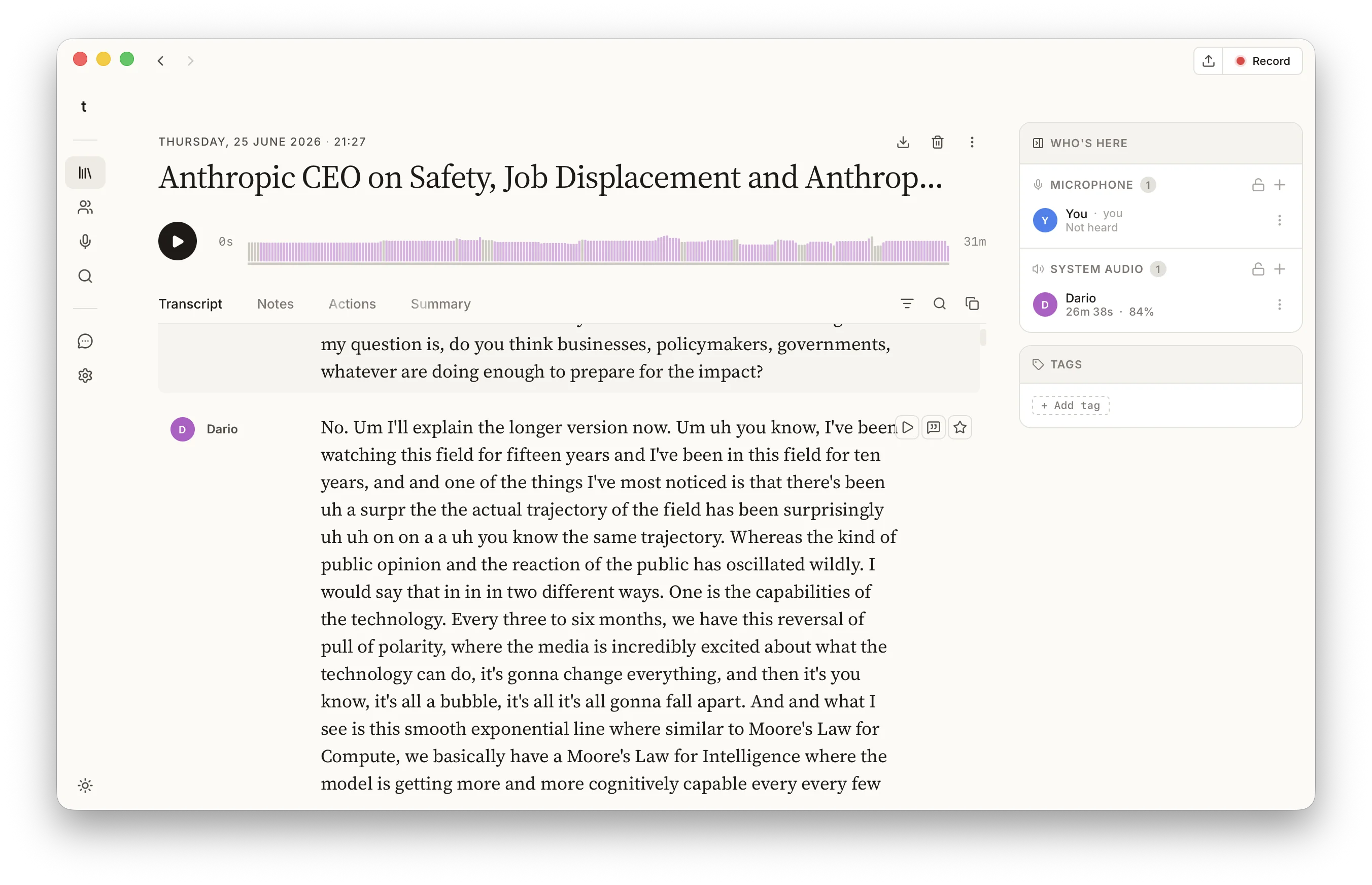
Then the same post-recording pass that runs after a live call runs here: a model on your machine reads the whole transcript and writes a summary, splits the meeting into chapters so you can jump to the part you need, and pulls out the action items. If you have exports or a webhook set up, those fire too. Naming the speakers is what makes all of this read like minutes rather than a wall of text, and the guide to taking notes in a meeting covers how speakers and voice prints work, since it's identical for an imported file.
Nothing leaves your machine
This is the part that separates importing a file into talat from uploading it to a transcription website. The file stays where it is on your disk; talat reads it in place rather than copying it anywhere. The decoding and the transcription both happen inside the app, using the same on-device models that handle live recordings. No audio is sent to a server, there's no account to sign into, and there's no per-minute meter running against your wallet.
That matters most for the recordings you'd least want to hand to a third party: an interview with a candidate, a medical or legal conversation, a one-to-one, anything covered by a confidentiality agreement. Offline transcription means the question of where your audio ends up has a simple answer. It's on your computer, and it stays there.
The one exception is the same one as everywhere else in talat: if you'd rather a cloud model wrote the summary, you can connect one with your own key, and that's the only point at which a transcript can leave your machine. It's off by default, and the local model is always there if you'd rather nothing left the room.
Importing from an AI assistant
talat also runs a local server that lets an AI assistant drive it, so if you live in something like Claude you can ask it to transcribe a file for you and read the result back, without leaving the conversation. The assistant hands talat the path to a local file, talat transcribes it on your machine exactly as above, and the finished transcript and summary come back into the chat. The audio still never goes to the assistant's servers; only the text you've already chosen to work with does.
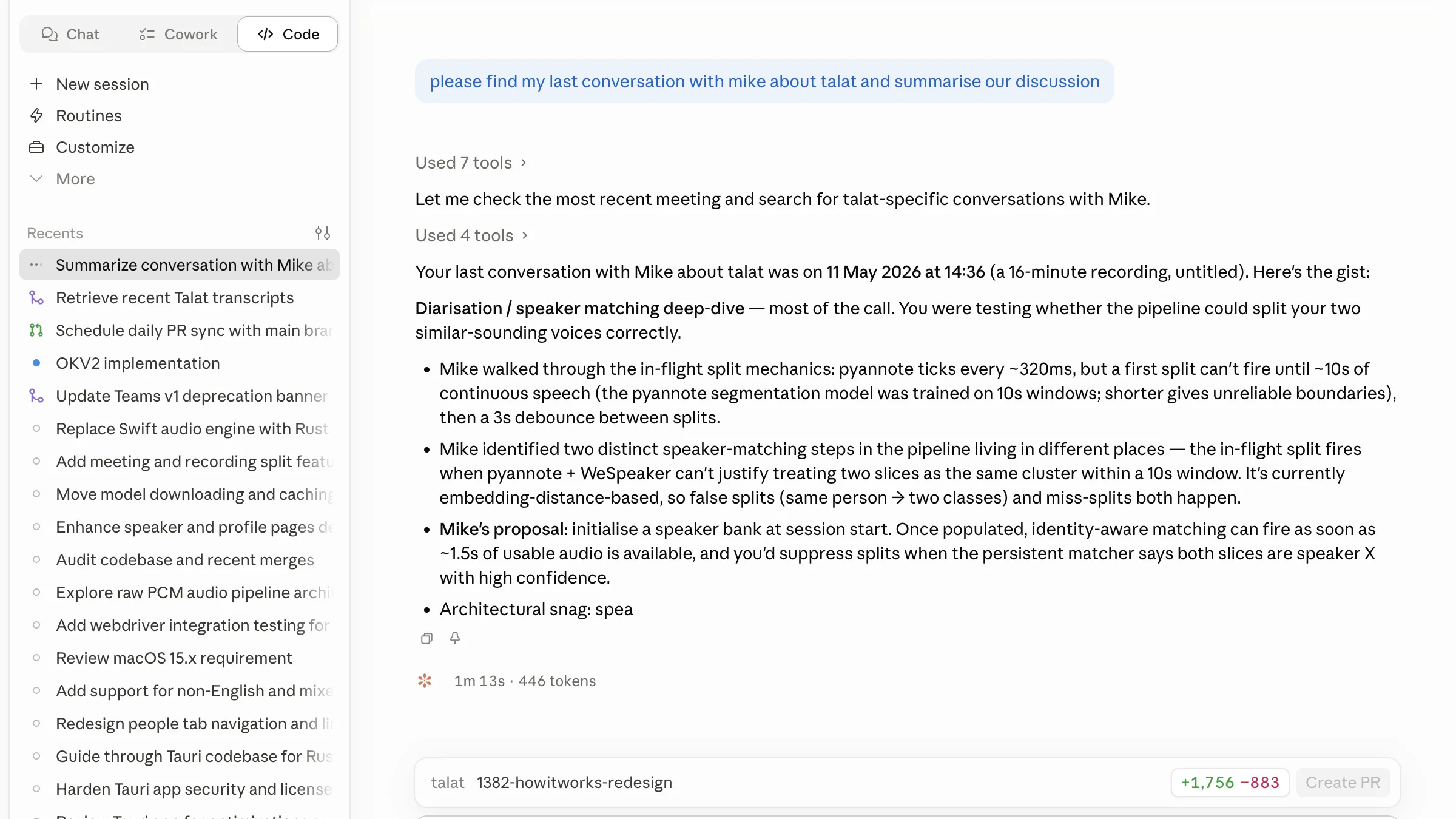
This is handy when the recording is one step in a larger task, like turning a recorded interview into a draft article, or pulling the decisions out of a call and dropping them into a tracker. talat does the private part, the transcription, and your assistant does the rest. It even works for audio you don't have yet: the guide to transcribing a YouTube video walks through asking Claude to fetch a video's audio and hand it straight to talat.
The short version
If you already have the recording, you don't need to play it back, and you don't need to upload it anywhere to get a transcript. Drop the file onto talat, or hand it over from your AI assistant, and it transcribes the whole thing on your own machine: a voice memo, an MP3, a video recording, all turned into a transcript that knows who said what, with a summary and action items waiting at the end. It's local AI transcription that treats your recordings as yours.
You can try talat free for ten hours, with no account.