How to take notes in a meeting using talat
There's an old trick for taking notes in a meeting: you can either listen properly or write things down, but you can't do both at once. The moment you look down to capture a point, you miss the next one. By the end you have half a page of fragments and a vague memory of the rest.
The fix is to stop writing and let the meeting record itself, then do the small amount of work that turns a raw recording into notes you can actually use. That work is mostly two things: making sure each line knows who said it, and reading the summary at the end. This guide is about both.
We'll assume you already have the recording. If you don't yet, talat captures your meetings locally on your Mac or PC, with no bot joining the call and nothing uploaded; the guide to recording a call without a bot covers that part. Once a meeting is recording, talat transcribes it on your device and attributes each line to the person who said it. The rest of this is what you do with that.
Why naming who said what matters
A transcript that doesn't know who's talking is a wall of text. You can read it, but you can't scan it, and you certainly can't turn it into minutes. "Someone agreed to send the contract" isn't a record; "Alice agreed to send the contract" is.
This is the difference between a raw transcription and real meeting notes. Once each line carries a name, the transcript becomes searchable by person, the action items have an owner, and the summary can say who decided what. It reads the way minutes are supposed to read.
talat is built to do this well. As you record, it tells voices apart on the other side of a call and groups each speaker separately, all on your device. Better still, once you've named someone, it tries to recognise that same person in your future meetings, so the work you do once keeps paying off.
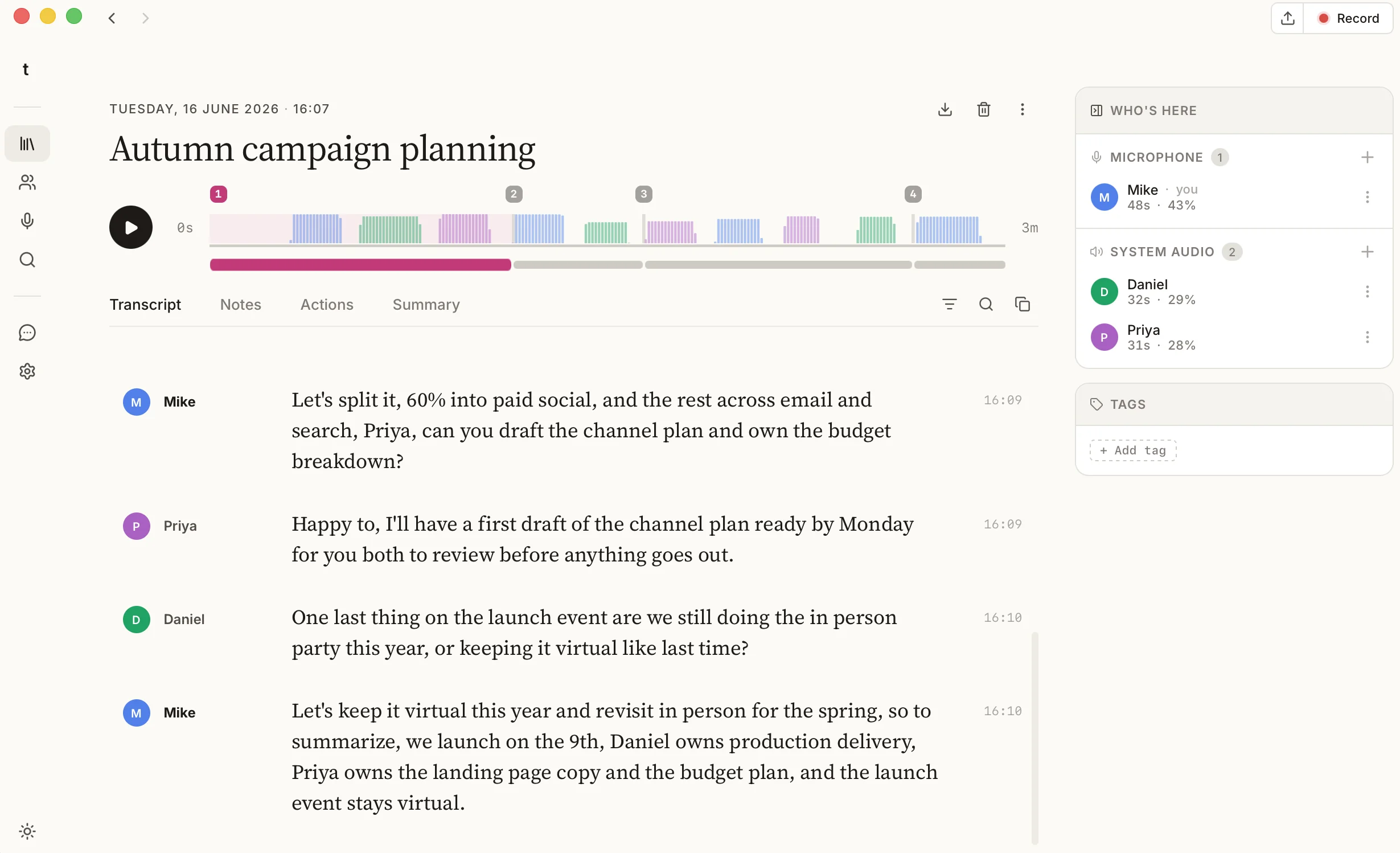
How to assign speakers
When you first meet someone new, talat doesn't know their name, so their lines show up under a generic label like System audio. Naming them is quick:
- Hover over any line that person said. A row of small icons appears in the top right of the bubble.
- Click the speaker icon (a pencil over a person). This opens the picker.
- Type a new name, or pick someone you've named before.
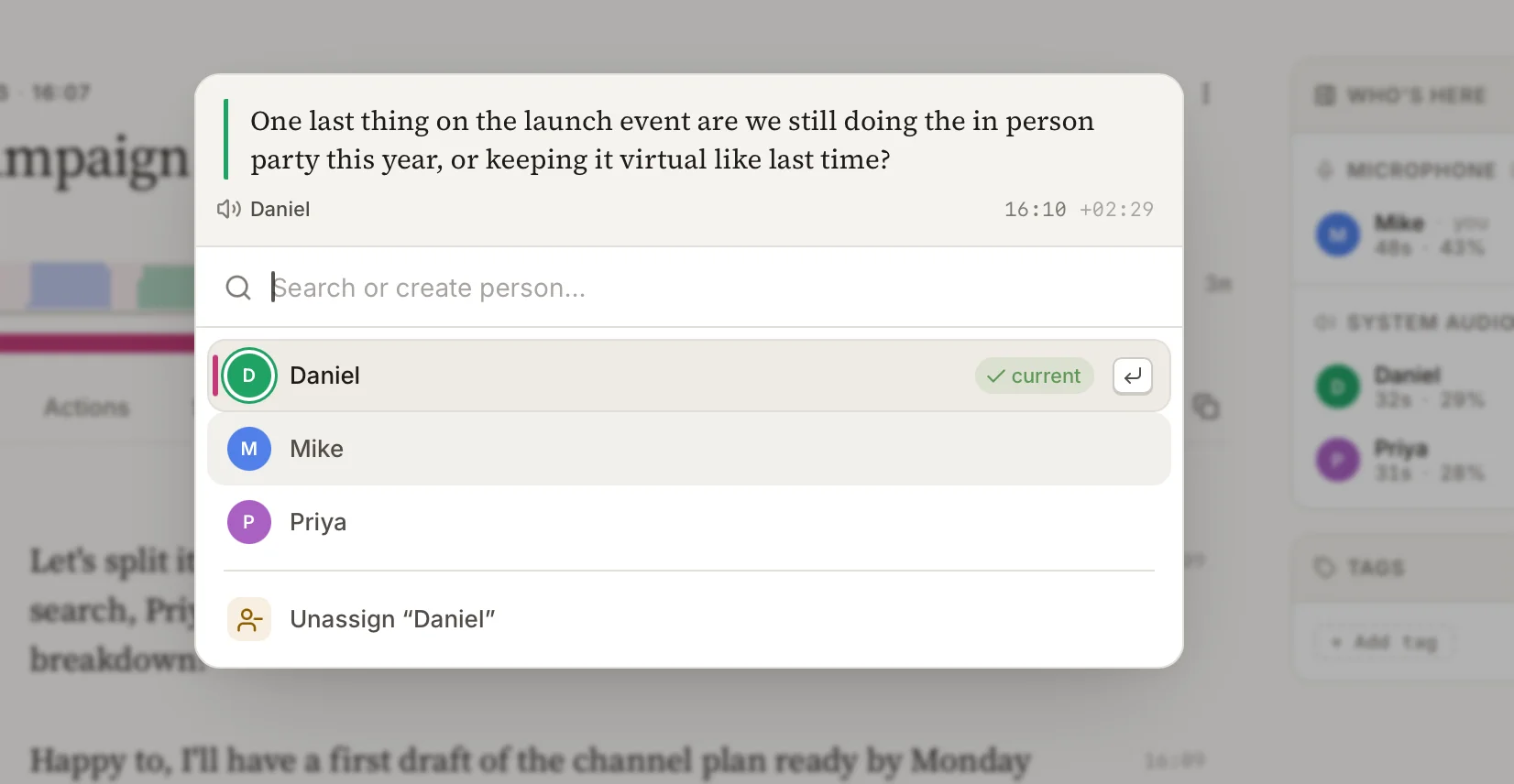
The transcript updates immediately, and every other line from that voice in the meeting updates with it. Names are global: a person you call Alice in one meeting appears as Alice in every meeting they're in.
The first meeting with a new group is the only one with much labelling to do. Once talat has names attached to those voices, the later meetings mostly name themselves.
Voice references, and the seven-second rule
The reason future meetings get easier is something talat builds quietly in the background: a voice reference. When you name or reassign a line, talat may store a short clip of that person's voice. In later meetings it compares unfamiliar voices against every stored reference and assigns a name automatically when one is a close enough match.
Each person has up to three reference slots, and a good reference is what makes auto-matching reliable. Two things make one good. The first is length: a reference needs at least seven seconds of that person's audio to be stored at all, so short utterances ("yeah", "right", "exactly") are too brief to seed one, and talat draws references from the longer stretches where someone actually held the floor. The second is cleanliness: a reference recorded over crosstalk or background noise teaches talat the wrong thing, so if two people keep getting confused, the cause is almost always one bad reference rather than a missing one.
You don't have to manage any of this for it to work. Name people as you go, reassign anything talat gets wrong, and the references take care of themselves.
After the meeting: summary, chapters, and action items
When a recording ends, talat reads the whole transcript and writes you a summary, breaks the meeting into chapters so you can jump to the part you need, and pulls out a list of action items. The work you did naming speakers pays off here: the action items know whose they are, and the summary can attribute decisions to the people who made them.
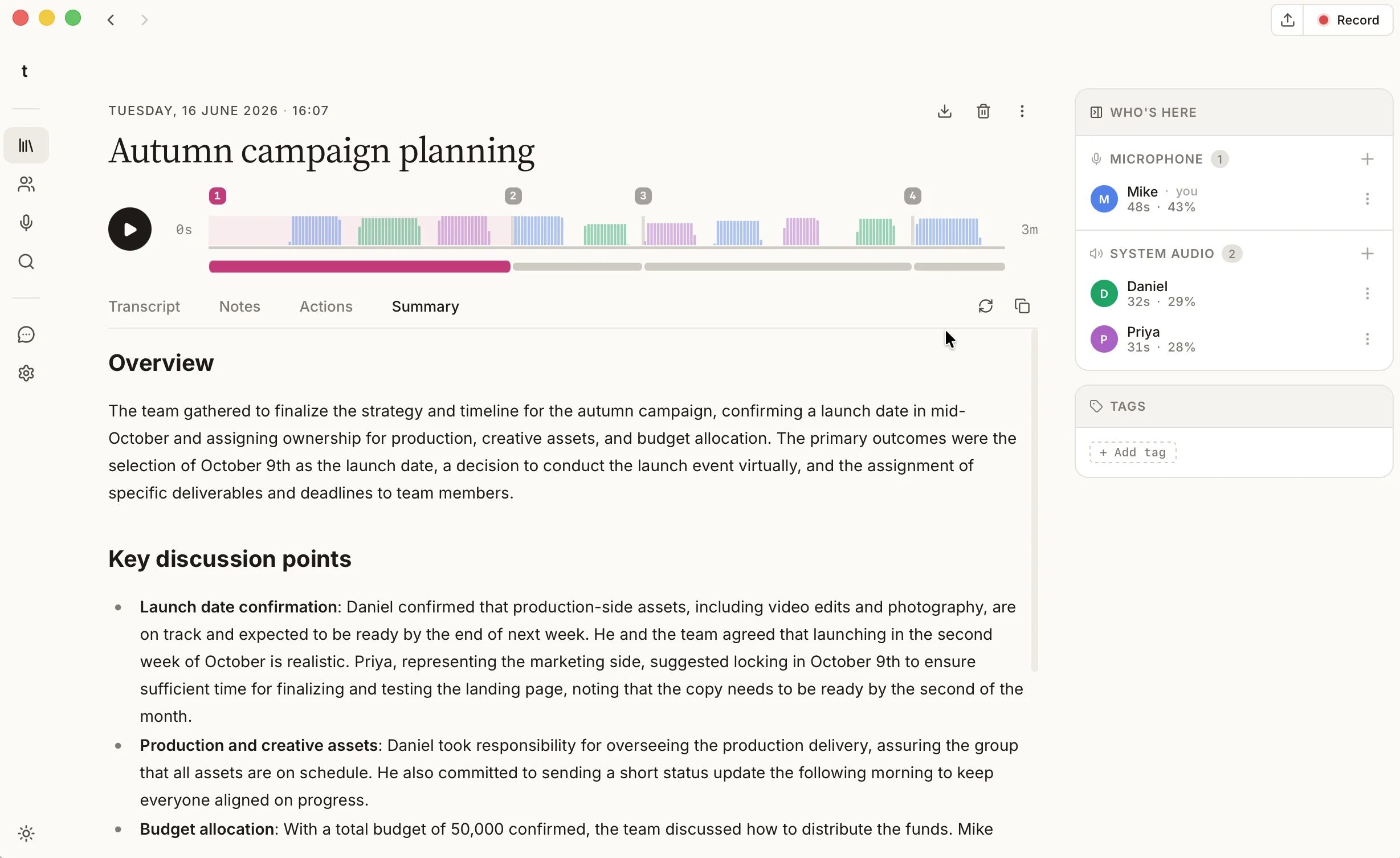
All of this is written on your machine by a model that ships with talat, so the summary, like the transcript, never leaves your computer. Summarisation is optional and configurable: you can turn it off entirely and keep just the transcript, or summarise a single meeting by hand whenever you like.
Sharper summaries with your own model
The built-in model is private and good for most meetings, though it gets a little conservative on long ones, much past half an hour. If you'd rather a more capable model wrote your summaries, talat lets you connect one with your own API key: OpenAI, Anthropic, or any OpenAI-compatible endpoint. You can also keep everything local with Ollama if you already run it.
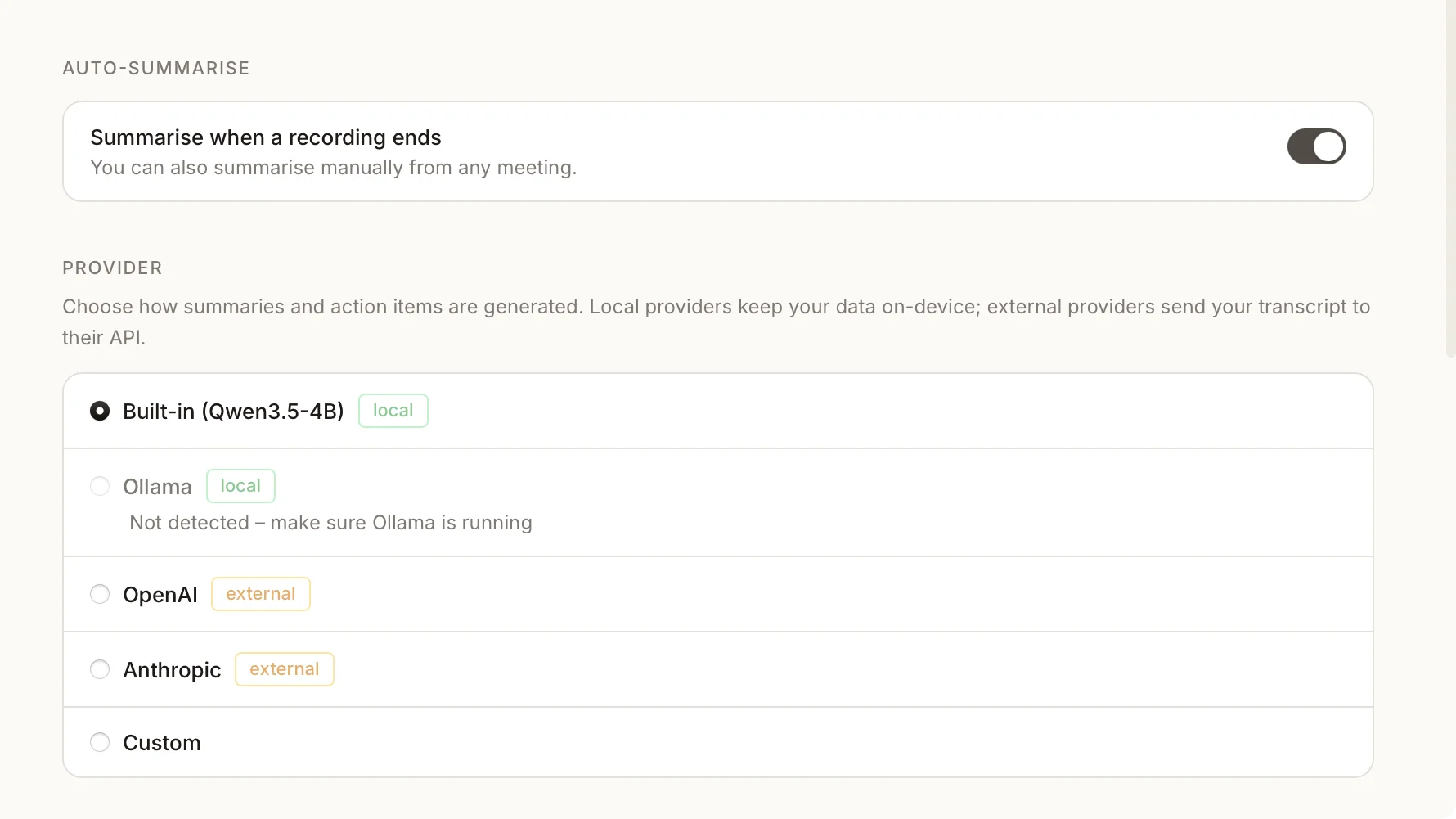
This is the one place where you can choose to send your transcript off the machine, and it's entirely your call. It's off by default, your key is stored in the operating system's credential store rather than by talat, and the local model is always there if you'd rather nothing left the room. Better summaries on a long meeting, or nothing uploaded ever: you decide, meeting by meeting.
The short version
You shouldn't have to choose between paying attention and keeping a record. Let talat record the meeting, name the people on the call once so it recognises them next time, and read the summary and action items when you're done. The notes write themselves, they know who said what, and they never leave your computer.
You can try talat free for ten hours, with no account.