How to record a Teams call without a bot in the room
There are three ways to come out of a Microsoft Teams call with a record of what was said. Two of them have a catch that most people only notice afterwards. This is a guide to the third.
If you've ever wanted a transcript or a set of notes from a Teams meeting, you've probably hit one of these walls: the built-in recording button was greyed out, or a colleague's AI note-taker turned up in the participant list and quietly changed how everyone spoke. Both are fixable. Neither is your only option.
The three ways to record a Teams call
| Method | Who can use it | Where the audio goes | Bot in the call? |
|---|---|---|---|
| Teams built-in recording | Usually the organiser, subject to admin policy | Your organisation's cloud | No, but everyone is notified |
| An AI note-taker bot | Anyone who connects one | The vendor's cloud | Yes, visible to all |
| Local capture | Anyone, on their own machine | Nowhere, it stays on your computer | No |
1. Teams' built-in recording
Teams can record a meeting and, depending on your organisation's policy, save it to OneDrive or SharePoint with a transcript alongside. When it's available to you, it's the right tool for the official record: the copy your colleagues expect to find in the meeting chat afterwards.
The catch is in "when it's available to you". Recording is gated by admin policy and usually limited to the organiser, so attendees, guests, and anyone on an external call often find it disabled. And the file lands in your employer's cloud, which is the wrong place for a job interview, a one-to-one, or a call with an outside client.
2. An AI note-taker bot
Most AI note-taking tools work by dialling into your call as a participant. You connect the service, its bot joins the meeting, and it streams the audio to the vendor's servers to be transcribed and summarised there.
The catch is that the bot is visible. People talk differently when there's a third-party recorder sitting in the participant list, and on external calls its presence can force a consent conversation you didn't plan for. Your meeting also leaves the room: the audio goes to someone else's cloud to be processed and stored.
3. Local capture, no bot
Your computer is already playing the call's audio through your speakers or headphones, and your microphone already hears you. Local capture records those two streams directly, on your machine, while you sit in the meeting like anyone else. Nothing joins the call, and nothing is uploaded. This is how talat works, as a local AI note-taker that runs entirely on your own machine, and it's what the rest of this guide uses as the example.
How to record a Teams call locally with talat
-
Install talat on the Mac or PC you take the call on.
-
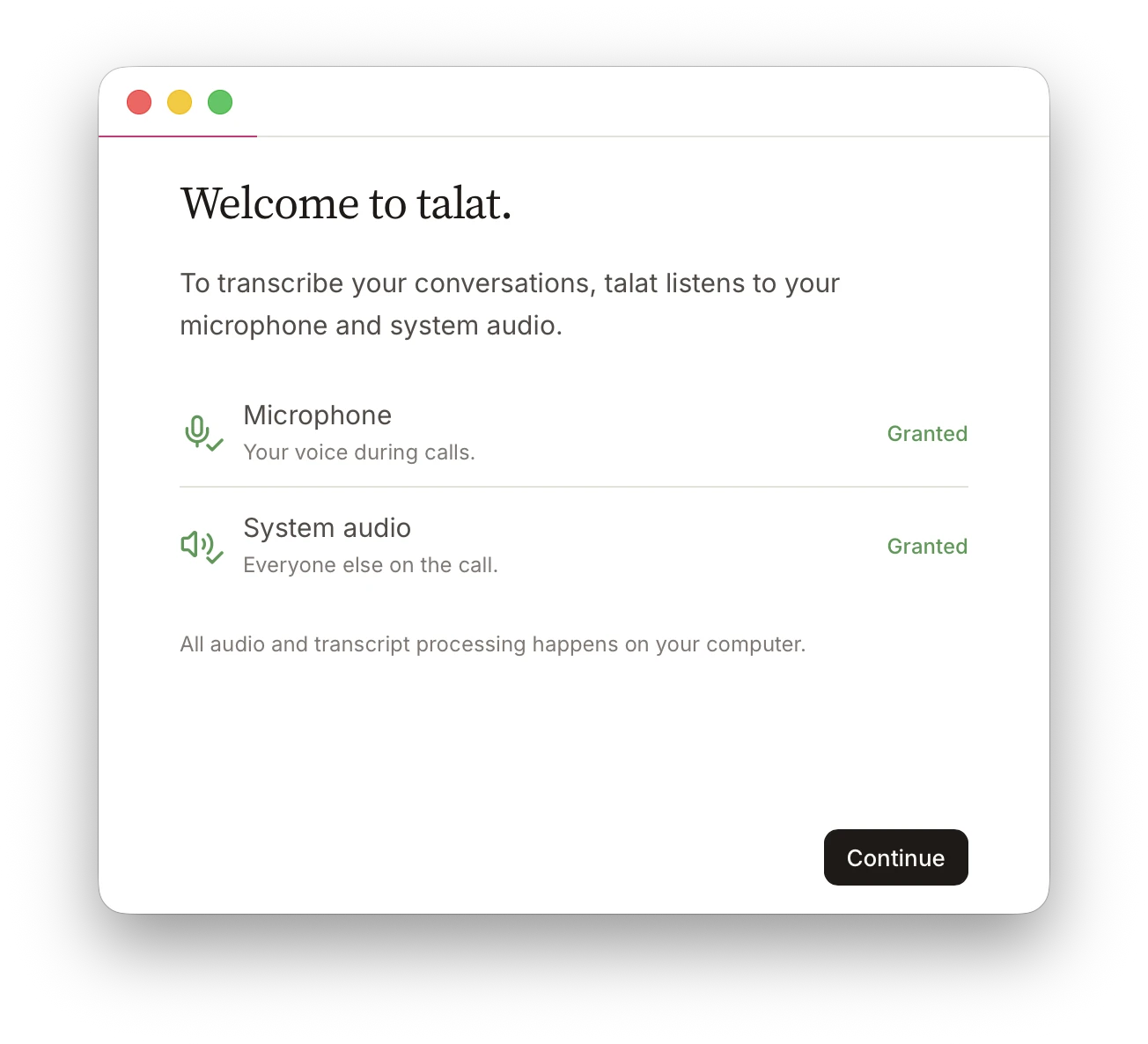
Give it permission to hear your microphone and your system audio. It's a one-time step, and the system audio is how it captures the other side of the call.
-
Join your Teams meeting as you normally would, in the app or the browser. You join the call, not talat.
-
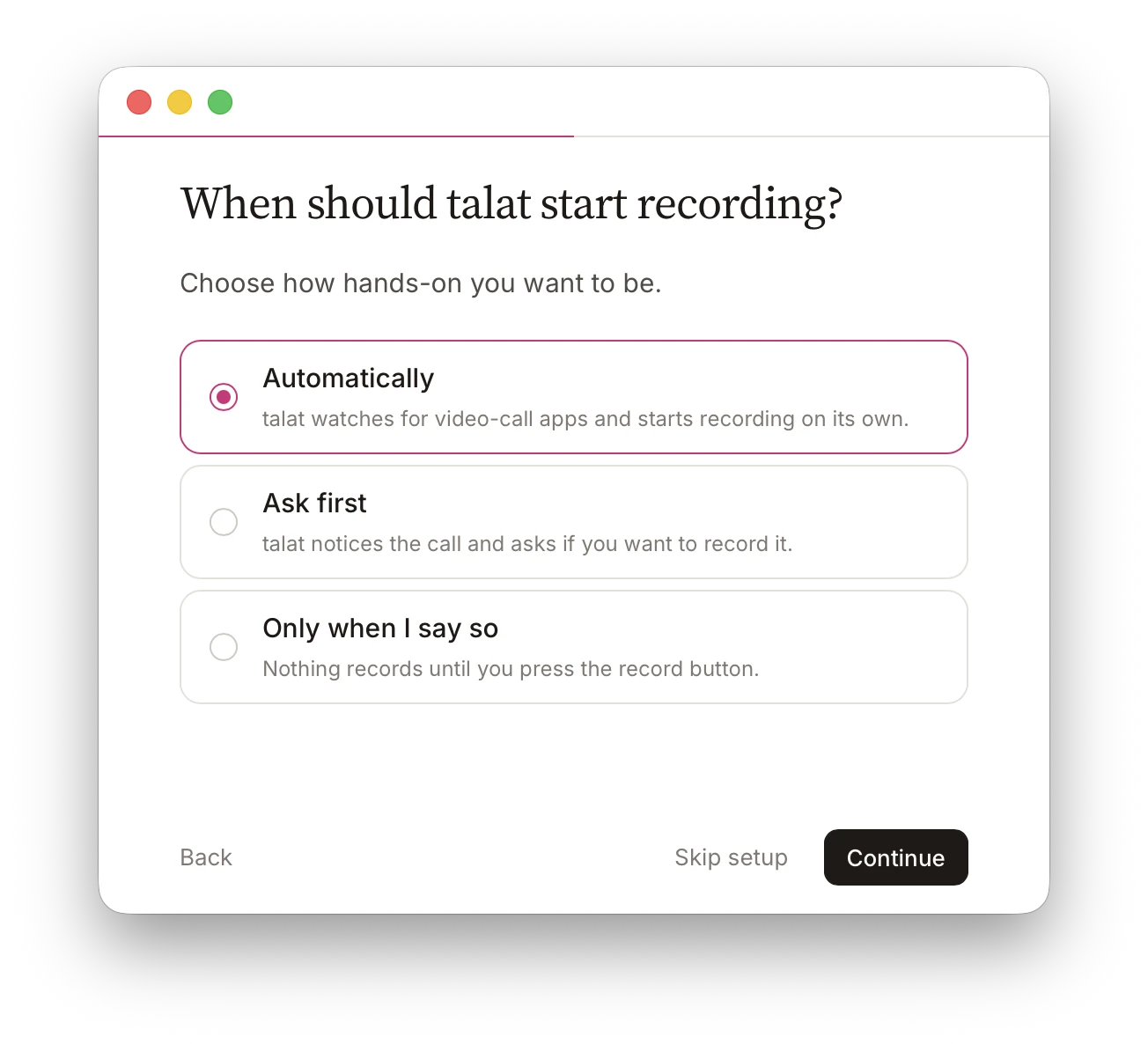
Decide when recording starts. talat can watch for a video-call app and begin on its own, ask you first each time, or stay out of the way until you press record. You set this once, so you're never recorded by surprise.
-
Have your meeting. talat records both streams, transcribes them on your device as you go, and attributes each line to the person who said it.
-
Stop when the call ends. Your transcript, notes, and a summary are waiting on your machine. Nothing was uploaded at any point.
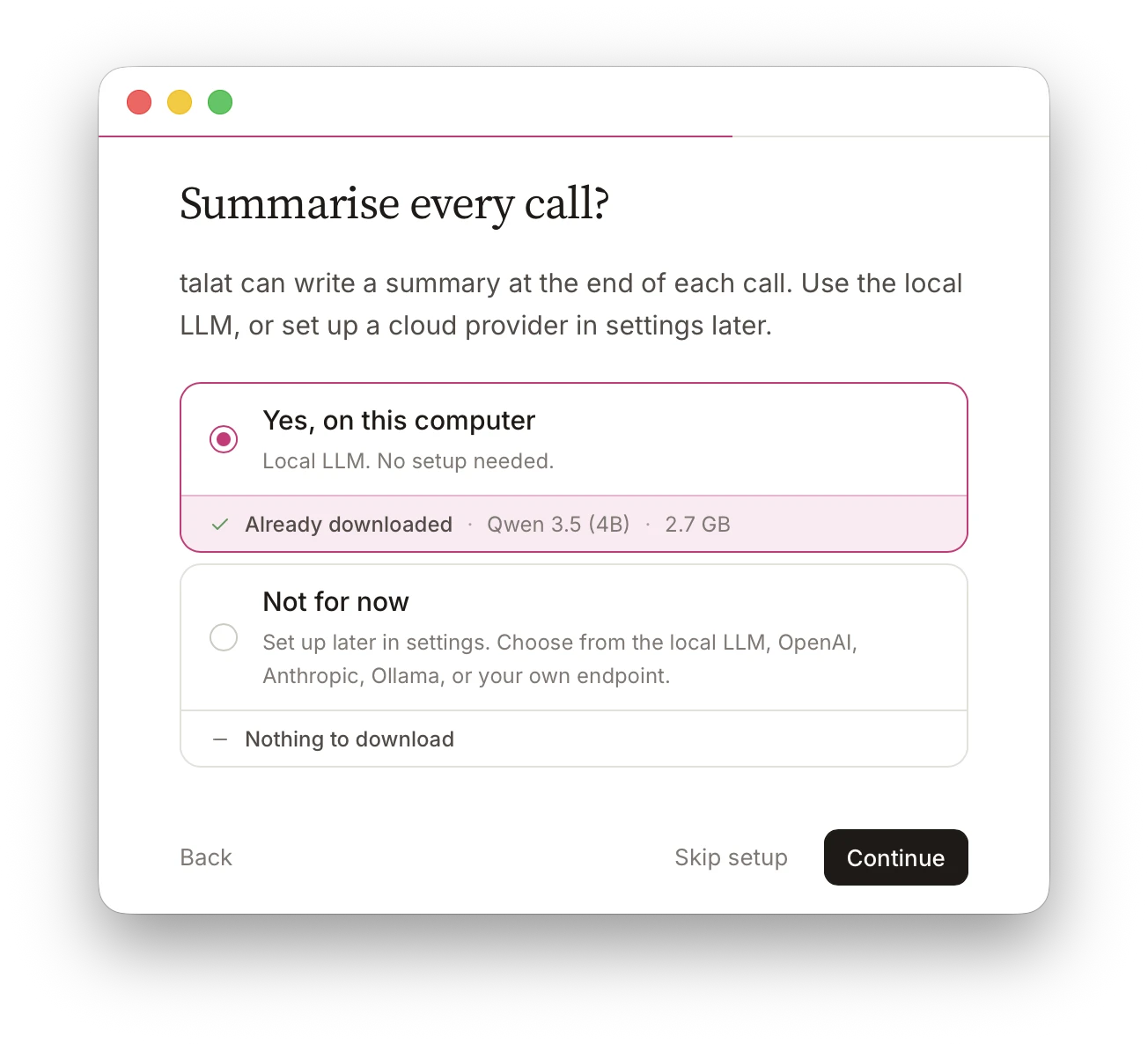
The recording, transcript, and summary live in a local database on your computer. A summary is written at the end of each call by a model running on your machine. If you'd rather a cloud model wrote it, you can connect one with your own key, but that's your choice and it's off by default.
A word on consent
Recording without a visible bot doesn't mean recording without telling anyone. It means the responsibility moves from the tool to you, and that's worth taking seriously.
The law varies. Some places require only one party to a conversation to consent to it being recorded; others require everyone. If you're not sure which applies to a given call, the safe and decent default is to say that you're recording, and why.
Etiquette outlives the law, too. Even where one-party consent is legal, telling people you're keeping a record is usually the right thing to do, and it costs you nothing. talat is built to keep you in control of your own meetings, and that control is worth using well.
When Teams' own recording is the better choice
If you need the official, shared organisation record, use Teams recording. If your IT or compliance team requires meetings to be retained in a particular system, use that system. Local capture is for the times when the record is yours: your notes, your reference, on your machine. The two aren't in competition. They answer different questions.
The short version
You don't need a bot, and you don't need to send your meeting to anyone's cloud, to come away from a Teams call with a good transcript. Your computer already has the audio. As an AI note-taker for Teams, Zoom, and Google Meet, talat records any call the same way, by listening to what your machine is already playing, with nothing joining the call and nothing leaving your device. You can try it free for ten hours, without an account.