Your download is on its way.
Thanks for giving talat a try. Windows takes a while to warm up to new publishers, so you’ll probably hit a couple of warnings before the installer runs - the screenshots below walk through them.
On the wrong computer? Get the Mac version instead. If something doesn’t work, email hello@talat.app.
Your browser might flag the download.
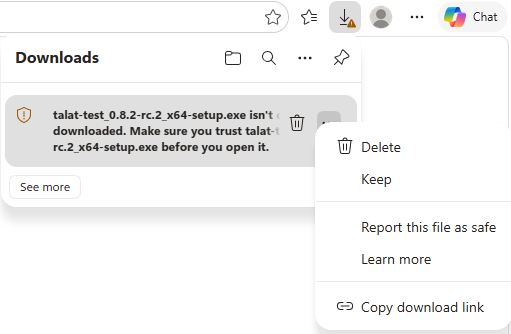
Chrome and Edge sometimes mark new executables as “not commonly downloaded.” In Edge, open the downloads panel, click the … menu next to the file, and choose Keep:
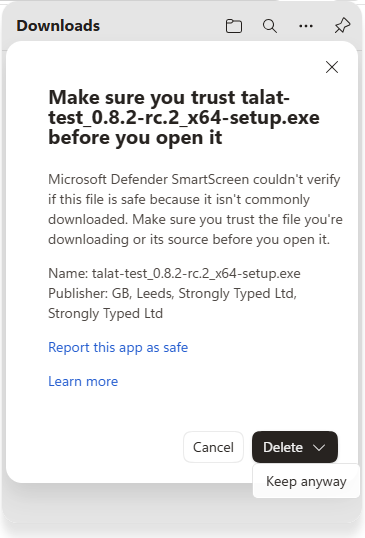
Edge will then ask you to confirm. Click the arrow next to Delete and choose Keep anyway:
Chrome shows a similar prompt in the downloads bar - click the arrow next to the file and choose Keep. Once the file is kept, open the installer as normal.
Windows might show a big blue warning.
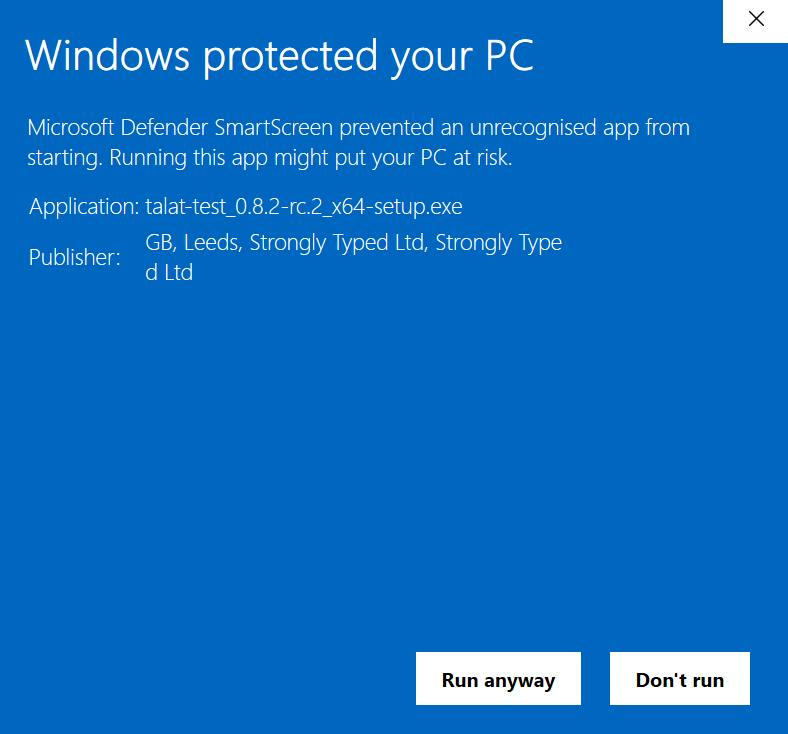
When you open the installer, SmartScreen (Windows’ reputation check for new publishers) might show this:
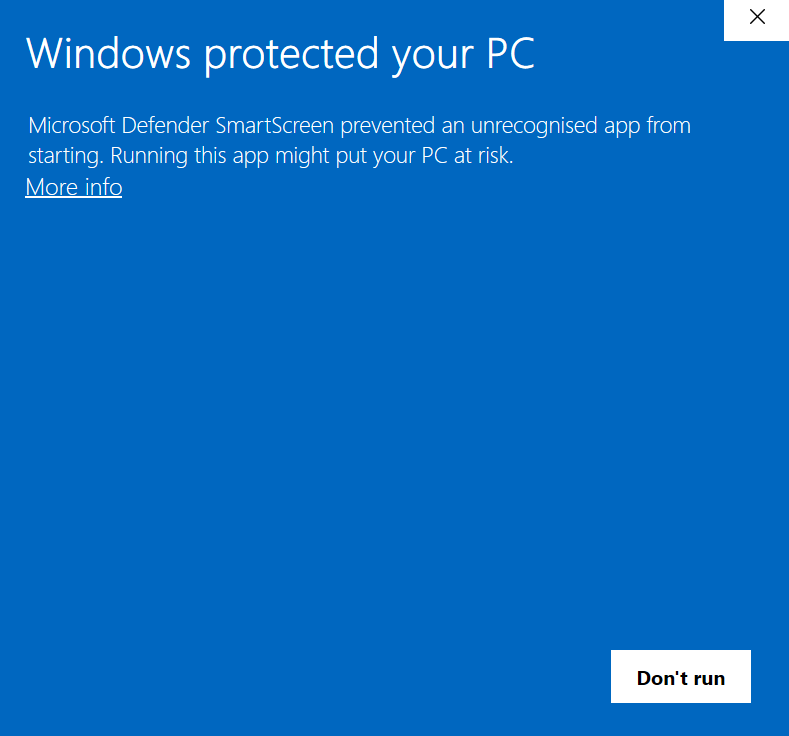
To run talat:
- Click More info.
- The Publisher will show Strongly Typed Ltd - that’s us.
- Click Run anyway.